

Accessibility
SeekBeak is committed to building accessible virtual tour software that meets WCAG 2.2 AA, Section 508, and EU EN 301 549 standards — ensuring interactive 360° experiences, 3D models, and Gaussian Splats are usable for everyone.
Our Commitment to Accessibility
SeekBeak is a browser-based platform for creating interactive 3D models, 360° virtual tours, and immersive experiences, and we have made accessible virtual tour software a core priority since our founding in 2014. Organizations in education, government, healthcare, and enterprise rely on SeekBeak to deliver interactive content that meets WCAG 2.2 AA, Section 508, and EN 301 549 requirements out of the box.
We work with CAST.org, the global leader in the inclusive education movement, and with external accessibility specialists to verify that our viewers meet or exceed applicable standards. Our platform supports full keyboard navigation, screen reader compatibility (VoiceOver, NVDA, Narrator, ChromeVox, TalkBack), gamepad and adaptive controller input, and an automatic Accessible Text Viewer that generates screen-reader-friendly documents from any experience.
We welcome your feedback on the accessibility of our platform. If you encounter any barriers, please get in touch.
Accessibility Conformance Report (ACR) — VPAT
A Voluntary Product Accessibility Template (VPAT) is the industry-standard framework for documenting how a product conforms to accessibility standards. The completed document is called an Accessibility Conformance Report (ACR). Procurement teams across government, education, and enterprise use VPATs to evaluate whether virtual tour software and other digital tools meet their accessibility requirements before purchasing.
SeekBeak is one of the few virtual tour platforms that publishes a VPAT. Our ACR is the International Edition, covering all major accessibility standards in a single document:
- WCAG 2.0, 2.1, and 2.2 — Level A and Level AA
- Revised Section 508 (U.S. federal procurement standard)
- EN 301 549 (EU harmonized accessibility standard)
Conformance Result
The SeekBeak Viewer — covering 360° images, flat images, 3D models, and Gaussian Splats — Supports WCAG 2.x Level A and Supports WCAG 2.x Level AA. The ACR also documents conformance with Revised Section 508 (U.S. federal procurement) and EN 301 549 (EU harmonized accessibility standard), both of which incorporate WCAG 2.x Level AA as their web accessibility benchmark.
If you are evaluating virtual tour platforms for an ADA compliant or Section 508 compliant deployment, the full ACR provides the detail your procurement team needs.
Download the SeekBeak Accessibility Conformance Report (PDF)
WCAG Conformance Summary
Making a virtual tour WCAG compliant requires addressing all four WCAG principles: Perceivable, Operable, Understandable, and Robust. The following summarizes how the SeekBeak Viewer meets each principle across 360° images, flat images, 3D models, and Gaussian Splats. Full details are in the Accessibility Conformance Report.
Perceivable
All interactive elements have text alternatives — the 3D canvas has a descriptive ARIA label, overlay images use user-editable names, hotspots are labelled, and decorative elements are hidden from assistive technology. Contrast ratios meet WCAG AA minimums across all UI elements. Text scales correctly at 200% browser zoom. Animations respect the prefers-reduced-motion setting, and users have upfront control over all audio playback.
Operable
Every function in the viewer is operable via keyboard. Arrow keys control camera rotation in all modes. WASD keys provide movement in 3D modes. Comma and Period keys cycle through hotspots, and Space activates them. Overlay menus implement the full WAI-ARIA menu pattern. Gamepad and adaptive controller support is built in. There are no keyboard traps — Tab moves focus normally, and Escape closes modals and popups.
Understandable
Navigation is consistent across all viewer instances. All controls have descriptive labels. The page language is programmatically set. Form errors provide specific correction guidance. No unexpected context changes occur on focus or input.
Robust
The viewer uses semantic HTML with proper ARIA roles, states, and properties throughout. Interactive elements expose their name, role, and value to assistive technology. Status messages use aria-live regions so screen readers announce them automatically. The viewer is compatible with major screen readers including VoiceOver, NVDA, Narrator, and ChromeVox.
Regulatory Compliance
SeekBeak's accessibility conformance is designed to help organizations meet their obligations under multiple regulatory frameworks. Whether you need a Section 508 compliant virtual tour for a government website, an ADA compliant virtual tour for a university, or EN 301 549 conformance for EU procurement, SeekBeak's published ACR provides the documentation your team needs.
United States
- Section 508 of the Rehabilitation Act — SeekBeak's ACR documents full conformance with the Revised Section 508 standards, including Functional Performance Criteria (Chapter 3) and Support Documentation requirements (Chapter 6). Federal agencies and contractors can reference the ACR during procurement.
- Americans with Disabilities Act (ADA) — SeekBeak aims to comply with digital accessibility requirements under ADA Title II (state and local government) and Title III (public accommodations), supported by WCAG 2.1 AA conformance and the accessible text viewer as a fully accessible alternative.
- Section 504 of the Rehabilitation Act — Organizations receiving federal funding can deploy SeekBeak's accessible virtual tours to meet their Section 504 obligations.
These requirements are especially relevant for education and training virtual tours, where schools, universities, and government programs must ensure that digital content is accessible to all learners and participants.
European Union
- European Accessibility Act (EAA) — SeekBeak's conformance with EN 301 549 supports organizations meeting their obligations under the EAA, which requires accessible digital products and services across the EU from June 2025.
- EU Web Accessibility Directive — Public sector organizations in the EU can reference SeekBeak's EN 301 549 conformance to meet web accessibility requirements for their virtual tour content.
- EN 301 549 — The EU harmonized standard for ICT accessibility. SeekBeak's ACR covers all applicable clauses including Web (Clause 9), Functional Performance Statements (Clause 4), and Documentation and Support Services (Clause 12).
International
- WCAG 2.0, 2.1, and 2.2 Level AA — The Web Content Accessibility Guidelines from the W3C are the global benchmark for web accessibility. SeekBeak supports Level A and Level AA across all three versions.
SeekBeak content may include links and embeds to third-party websites that may not conform to WCAG 2.1 Level AA. The conformance status of external content is outside of our control.
Accessible Text Viewer
One of the biggest challenges in making 360° virtual tours accessible is that the content is inherently visual and spatial. SeekBeak solves this with the Accessible Text Viewer, which automatically generates a text-based document from any 360° image, flat image, 3D model, or Gaussian Splat experience. It extracts all the data from your Snaps, including hotspots, titles, descriptions, links, embeds, and images, and creates a fully accessible document that satisfies WCAG 2.2 AA, Section 508, and the EU Web Accessibility Directive.
Optimized for screen readers, the Accessible Text Viewer presents all your content in an easy-to-read format that does not require clicking on hotspots or moving virtual cameras. Because SeekBeak generates these documents on demand, you never have to maintain two separate versions of your content or worry about the accessible version falling out of date.
Text Viewer links are separate from your Public View Links, so you can send people directly to an accessible version without needing them to enter the visual experience first.
Text Viewer Comparison
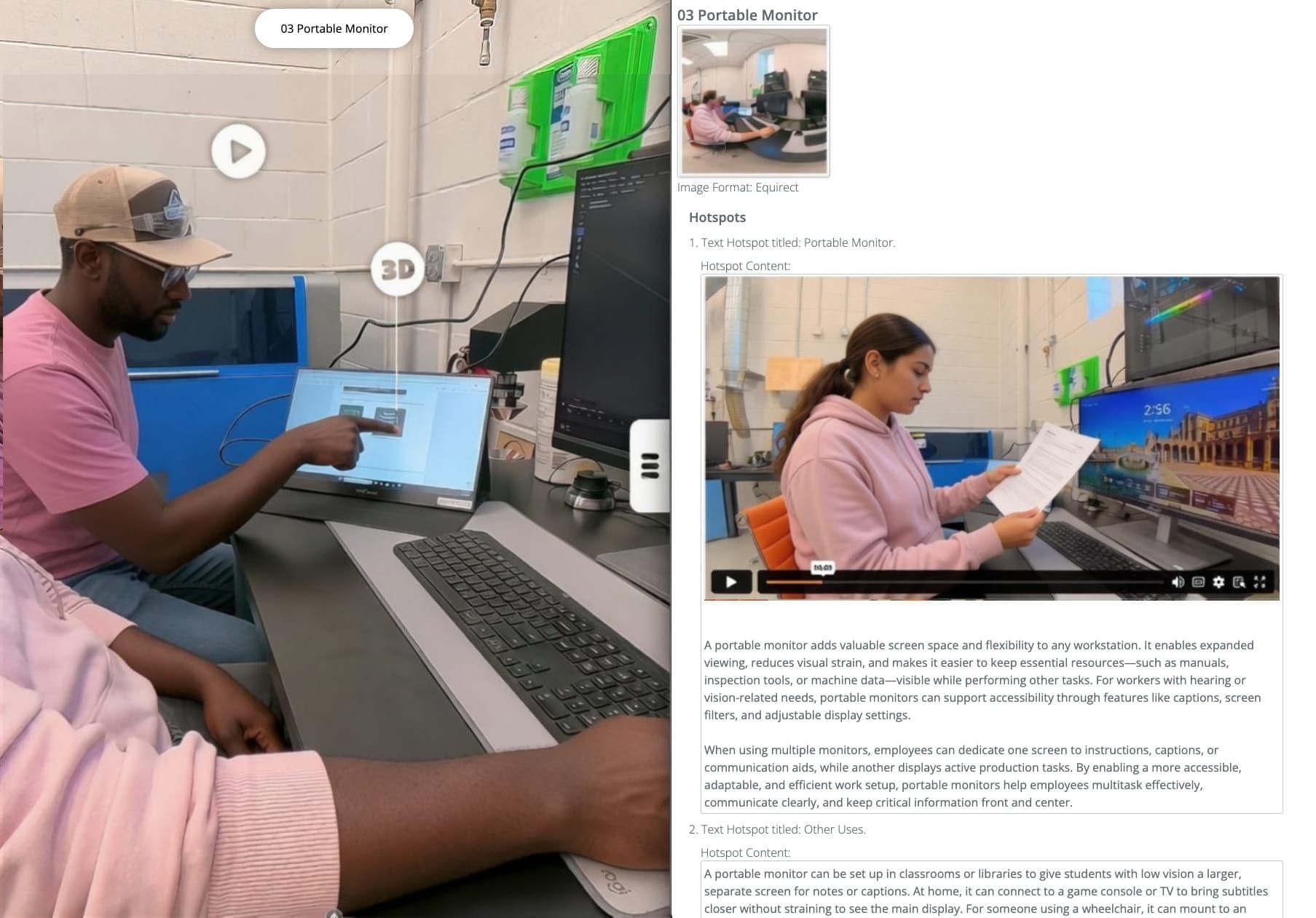
A side by side comparison of the original 360º Snap on the left, and the dynamically generated text viewer on the right.
Keyboard & Assistive Technology Reference
All SeekBeak viewer functionality is available via keyboard and assistive technology, with no mouse or touchscreen required. The controls below apply across all content types in SeekBeak's 360° virtual tour software, including 360° images, flat images, 3D models, and Gaussian Splats.
Camera Control
| Action | Keys | Notes |
|---|---|---|
| Pan / rotate camera | ← → ↑ ↓ | All viewer types |
| Move through scene | W A S D | 3D modes only (Orbit+Move, Fly, First Person) |
| Adjust elevation | Q (down) / E (up) | 3D modes only |
| Precision movement | Hold Shift | Slows movement speed |
Hotspot Navigation
| Action | Keys | Notes |
|---|---|---|
| Cycle to next hotspot | . (Period) | Sorted by angle from camera — clockwise order |
| Cycle to previous hotspot | , (Comma) | |
| Activate / toggle hotspot | Space | Opens popup; press again to close |
In 3D modes, the camera rotates to face the selected hotspot and uses it as a pivot point — you can then use arrow keys to orbit around it.
UI Navigation
| Action | Keys | Notes |
|---|---|---|
| Move between controls | Tab / Shift+Tab | Toolbar, navigation, thumbnails |
| Activate control | Enter or Space | |
| Close dialog / popup | Escape | |
| Navigate image slideshow | ← / → | When slideshow is open |
Overlay Menus (WAI-ARIA Pattern)
| Action | Keys |
|---|---|
| Move between menu items | ↑ / ↓ |
| Jump to first / last item | Home / End |
| Activate item | Enter or Space |
| Close menu | Escape |
Content creators can set a custom focus order for overlay elements and assign screen reader labels to each component — no code required.
Gamepad & Adaptive Controller
SeekBeak supports Bluetooth and wired game controllers, including the Xbox Adaptive Controller. Connect a controller and SeekBeak will prompt you to enable it.
- Left thumbstick — camera movement (adapts to the active camera mode: orbit, fly, or first person)
- Primary button (hold) — activate hotspots under the reticle; release to deactivate
Screen Readers
The viewer is built with semantic HTML, ARIA landmarks, roles, states, and live regions. It is compatible with VoiceOver, NVDA, Narrator, ChromeVox, and TalkBack. For a fully linear reading experience, use the Accessible Text Viewer — it generates a complete text document from any SeekBeak experience.
Marketing Website
The SeekBeak marketing website (seekbeak.com) is compatible with modern web browsers including Chrome, Safari, Edge, Firefox, and Brave.
Skip Navigation — Each page begins with a skip navigation link that moves focus directly to the main content, bypassing repeated navigation links.
Alternative Text — All images are accompanied by descriptive alt text. If you find an image missing alt text, please let us know.
Text Resizing — Use your browser's zoom controls:
- Ctrl (or Cmd on Mac) + + to zoom in
- Ctrl (or Cmd on Mac) + - to zoom out
- Ctrl (or Cmd on Mac) + 0 to reset
Screen Readers — Free screen readers are available on all major platforms:
Legal Disclaimer
This Accessibility Conformance Report (ACR) is provided for informational purposes only and does not constitute legal advice. The purpose of this document is to assist organizations in making preliminary assessments regarding the accessibility features of the SeekBeak Viewer, based on our understanding of the WCAG standards. SeekBeak makes no warranties of any kind, expressed or implied, regarding this report, and specifically disclaims any liability with respect to its contents. Information may be updated without prior notice. Content creators using SeekBeak are responsible for ensuring that the content they publish — including text, images, audio, and interactive elements — meets applicable accessibility requirements under laws such as the Americans with Disabilities Act (ADA), Section 508 of the Rehabilitation Act, and the European Accessibility Act.