

Unlock Seamless Integration: Connect Your Website to Interactive 360s & 3D Models with the SeekBeak Embed API
Simple and Powerful Bi-Directional Communication between SeekBeak and your Website, Platform, or App.
Why Would I Need an API?
Interactive content is transforming the web. Whether it's an immersive 360° virtual tour, a detailed 3D product model, or an annotated flat image, SeekBeak empowers you to create rich, engaging experiences for your audience. But what happens when you want that rich experience to talk to the rest of your website? How do you bridge the gap between your stunning SeekBeak creation and your existing e-commerce cart, booking system, learning management system, product configurator, or other type of platform?
The Challenge: Isolated Interactivity
Let's paint a picture. You've built a beautiful virtual store using SeekBeak, showcasing your products in stunning 360° detail. Or perhaps you've created an interactive training simulation with critical learning points highlighted via Hotspots.
You'd like people to be able to click an item in the 360º image, and see more product details, prices and configurations, or learn more about the training module in question. Obviously, you can do this all inside of SeekBeak using our existing tools, but you've done the hard work of setting up your website's existing functionality - you shouldn't have to rebuild (and maintain!) it inside another platform.
What if someone could click a product in the 360º image, and your website would just show the existing details and images for that product you've already added, or show complex training responses, or add the item to the cart functionality you've already got in place?
The Solution: The SeekBeak Embed API - Your Integration Superpower
This is precisely where the SeekBeak Embed API comes in. Think of it as a secure communication channel, a digital bridge, connecting your website, or application, directly to the SeekBeak content embedded within it.
An API, or Application Programming Interface, is a set of rules that allows different software applications to communicate with each other, exchange data, and perform coordinated functions.
Bi-Directional Power: A Two-Way Conversation
The SeekBeak API isn't just a one-way street. It's bi-directional:
- Your Website Controls SeekBeak - Your website can send commands into the SeekBeak embed. Imagine dynamically changing the view, highlighting specific Hotspots based on user actions on your page, or even loading different SeekBeak tours entirely.
- SeekBeak Informs Your Website - When a user interacts with a Hotspot inside the SeekBeak embed, (like clicking a product or completing a step), SeekBeak can send information out to your website. Your site can then react accordingly - perhaps by updating a price display, adding an item to the cart, showing related content, or logging user progress.
Live 360º Demo
The buttons below are located on this website. When clicked, they'll send action messages to the SeekBeak embed. Try them out!
Hotspot Focus
Hotspot Click
No Data Received. Click a Hotspot in the SeekBeak Embed!
Transform Your Customer Experience With Interactive Content
Today's online audience expects more than just flat images and an occasional animated gif or video. They want immersive, interactive experiences that let them explore products and platforms from every angle. SeekBeak's Embed API integration delivers exactly that without requiring a complete overhaul of your existing infrastructure and code base.
Real-World Applications That Drive Conversions
- Furniture, lighting, or home decor retailers can allow customers to view pieces in 360°, click on various fabric, fixture, and other options, and immediately see pricing updates on your website.
- Real estate platforms can embed virtual property tours which display detailed information, floor plans, or neighbourhood guides already on your site.
- Venues and Tourism platforms can open their website's booking engine for that specific room, venue, or date.
- Automotive dealers can showcase vehicle interiors where clicking a feature triggers detailed information panels from your existing vehicle specs.
- Send custom events from SeekBeak interactions to your website's analytics or CMS for deeper insights.
- Interactive Learning & Training platforms can mark a step as complete in your Learning Management System (LMS), unlock the next module or quiz on your training platform, or display definitions or related resources from your website's knowledge base.
The Technical Edge That Makes Implementation Simple
Our API uses secure postMessage events - the industry standard for iframe-to-website communication. This approach ensures:
- Maximum security with cross-origin protection built in.
- Lightweight integration that won't slow down your website.
- Developer-friendly implementation with minimal code requirements.
Getting Started Is Easier Than You Think
You don't need to be a technical expert to implement SeekBeak's Embed API. Our documentation and support make integration straightforward:
- Create your interactive 360° content in the SeekBeak platform.
- Add Hotspots to your key product features or areas of interest.
- Use our simple code snippets to connect your SeekBeak experience to your website functionalities.
- Launch your enhanced experience and watch your engagement metrics climb.
Don't let your interactive content live in isolation. The SeekBeak Embed API empowers you to break down the walls between your engaging 360° / 3D content and the core functionality of your website. Create truly seamless, dynamic, and effective user journeys that leverage the best of both worlds.
Technical Info - Developers
The SeekBeak Embed API brings a few simple commands which will allow you to do the following from your webpage or app via postMessage events:
- Focus the camera on a hotspot in a 360º image.
- Click a Hotspot in a 360º, flat image, or 3D Model.
- Activate a Waypoint in a 3D Model. (Move the camera in 3d space to a certain location).
- Click an Overlay Node in any active Snaps Overlay.
While that might seem overly simplistic, don't forget that you can have invisible / inactive Hotspots for looking at, plus Hotspots and Overlay Nodes can also trigger multiple Actions. You really can do just about anything the platform can do by using just those message types!
Similarly, SeekBeak will send out a postMessage event when Hotspots or Overlay Nodes are clicked, which your website can 'listen' for and respond to those events.
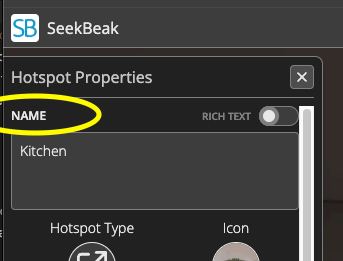
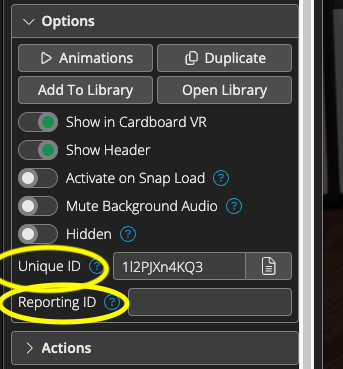
The Slugs / ID's used for focusing/clicking Hotspots are located in the Hotspot Properties area.
Hotspot Properties -> Name
Hotspot Properties -> Options -> Unique ID
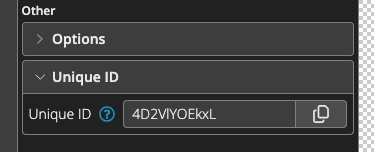
The Slugs / ID's used for clicking Overlay Nodes are located in the Overlay Node Properties area.
Overlay Node Properties -> Other -> Unique ID
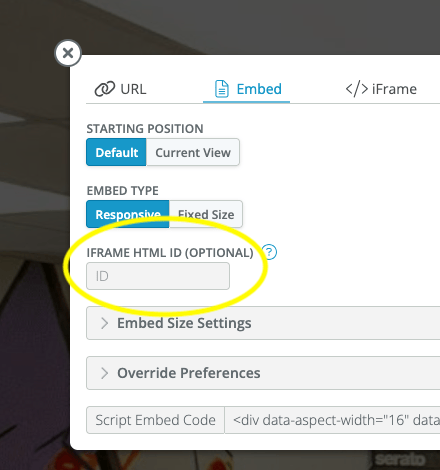
For ease of use, we also allow you to define the embed iFrame ID in the Snap Share dialog.
Snap Share Popup
Send Message Format
These are the message formats that SeekBeak will listen for.
interface SBHotspotClickSendMessage {
  source: 'seekbeak';
  type: 'hotspot_click';
  hotspotSlug: string;
}
interface SBHotspotFocusSendMessage {
source: 'seekbeak';
type: 'hotspot_focus';
hotspotSlug: string;
}interface SBWaypointTriggerSendMessage {
source: 'seekbeak';
type: 'waypoint_trigger';
waypointSlug: string;
}interface SBOverlayNodeClickSendMessage {
source: 'seekbeak';
type: 'overlay_node_click';
overlayNodeSlug: string;
}Receive Message Formats
This is the message format that SeekBeak will send when a Hotspot is clicked by the user. It will not send a message if the Hotspot is clicked via the Embed API. Nobody likes infinite loops.
interface SBHotspotClickReceiveMessage {
  source: 'seekbeak';
  type: 'hotspot_click';
  snapSlug: string;
  hotspotSlug: string;
  hotspotReportingId: string | null;
  hotspotName: string | null;
}
This is the message format that SeekBeak will send when an Overlay Node is clicked by the user.
interface SBOverlayNodeClickReceiveMessage {
  source: 'seekbeak';
  type: 'overlay_node_click';
  snapSlug: string;
  overlayNodeName: string | null;
  overlayNodeSlug: string;
}Sending a Hotspot Click Message
const iFrame = document.getElementById('yourIframeId') as HTMLIFrameElement | null;

const SBWindow = iFrame?.contentWindow;

if (SBWindow) {
  SBWindow.postMessage( {type:'hotspot_click', hotspotSlug: 'abcdefg' }, '*');
}
Receiving a Message
window.addEventListener('message', handleReceiveMessage);

function handleReceiveMessage(event: MessageEvent) {
  const message = event.data;

  const hotspotSlug = message.hotspotSlug;
  const hotspotName = message.hotspotName;

  ... your code to respond to the event
}