How do I Embed My 360 Image in a Website?

Want to put an interactive 360° photo on your website? It is genuinely a copy-and-paste job. SeekBeak is a browser-based platform that hosts your 360° photos and virtual tours and hands you a ready-made embed code, so adding one to your site takes a couple of minutes with no plugins and no coding.
To grab your embed code, open your Snap, click the Share button at the bottom, and select the Embed tab. SeekBeak generates the code for you, ready to paste into any web page you can edit, whether you hand-write your HTML or use a builder like WordPress, Squarespace, or Wix. We cover the platform-by-platform steps in our website builder embedding guide.
Click "Share"
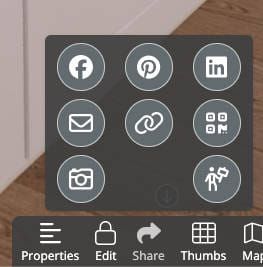
Click the share button at the bottom of the Snap, choose the "link" icon, and this window will open with the embed code window.
Select the "Embed" Tab
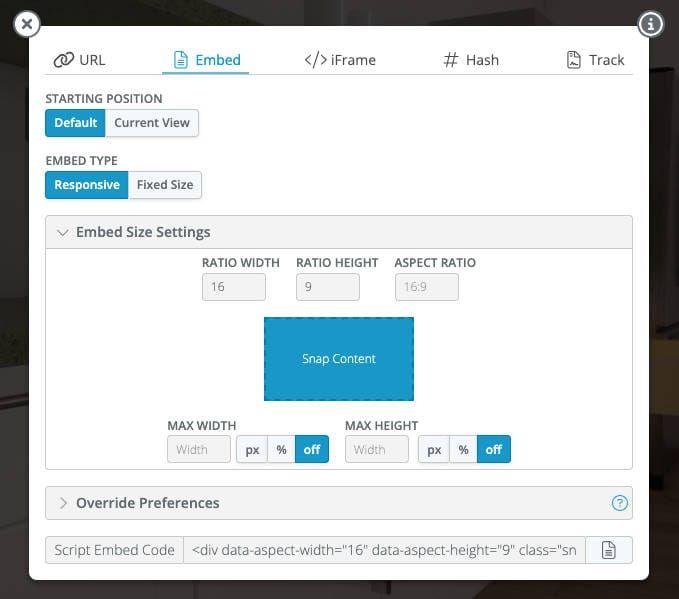
Copy the embed code in the section you see below and paste it into a page on your website. Your Snap will now be viewable by anyone on that website. You can now embed your Snap anywhere else on the internet!
How to Add the 360 Photo to Your Website
The embed code works on any web page. You do not need a particular platform or a no-code builder: if you can edit the HTML of a page, or paste into a content block that accepts it, you can add a SeekBeak 360°. Once you have copied the code, paste it wherever you want the 360° to appear. SeekBeak gives you two embed options, and you can use whichever suits your setup:
- iFrame embed: the simplest method. Paste it into any HTML block or code widget and your 360° loads inside a self-contained frame. (An iframe is the standard HTML element for embedding external content.)
- JavaScript embed: the more powerful option. It is responsive and adapts to the width of its container, and it unlocks things a plain iframe cannot do. On phones it uses the device gyroscope and accelerometer, so visitors can physically move their phone to look around the 360°. It also manages memory intelligently across a page, so you can place several 360° embeds on one page without the browser crashing, something that happens fast on mobile when you load multiple iframes.
If you build pages by hand, paste the snippet straight into your HTML where you want it to sit. If you use a website builder, the same code goes into the right block: a Custom HTML block in WordPress, a Code block in Squarespace, and the equivalent embed or HTML element in Wix, Webflow, GoDaddy and the rest. Either way the result is responsive and works across desktop, tablet, and mobile, with no app or plugin for your visitors to install.
Rule of thumb: use the iframe for a quick single embed, and the JavaScript embed when you want gyroscope motion on mobile or more than one 360° on the same page.
Why Embed an Interactive 360, Not Just a Flat Panorama
A plain panoramic image lets people look around, and that is where most free 360 viewers stop. Because your 360° is hosted on SeekBeak, the version you embed stays fully interactive on your site:
- Hotspots that link scenes together or open text, images, audio, and rich media right inside the view. Here is how to embed rich media and hotspots in a 360 photo.
- Embedded video, web forms, and lead-capture fields, so a visitor can book a viewing or ask a question without leaving the experience.
- Built-in analytics and heatmaps that show exactly where viewers looked and clicked, hosted on SeekBeak's own domain so ad-blockers do not strip the data.
- Live updates and custom branding: edit the Snap once and every page it is embedded on updates instantly, under your own logo and colors.
If you are weighing up tools, our overview of 360° virtual tour software covers what to look for. The short version: a free viewer is fine for a single photo, but an embeddable, trackable, interactive experience is what turns a 360° into a working part of your website.
Frequently Asked Questions
How do I add a 360 photo to my website?
Upload your 360° photo to SeekBeak, open the Snap, click Share, and select the Embed tab. Copy the embed code and paste it into an HTML or code block on your page. The 360° appears immediately, fully interactive, with no plugins required.
Can I embed a 360 photo in WordPress or Squarespace?
Yes. The same SeekBeak embed code works in a WordPress Custom HTML block, a Squarespace Code block, and most other website builders. Our website builder embedding guide walks through each platform.
Do I need to know how to code?
No. Embedding is copy and paste. You never write JavaScript or HTML beyond pasting the snippet SeekBeak gives you, and viewers need nothing installed to explore the 360°.
Will the embedded 360 work on phones and tablets?
Yes. SeekBeak experiences are mobile-first and render at 60fps in any modern browser, so your embed looks right on desktop, tablet, and phone automatically.
Can I control which websites are allowed to show my 360?
Yes. You can restrict an embed to specific approved domains, add a password, or gate it behind a paywall. See secure embedding and monetization for the details.
Key Takeaways
- Embedding a 360° image is a copy-and-paste job: Share, then the Embed tab, then paste the code.
- SeekBeak gives you both an iframe and a responsive JavaScript embed code, and both work in WordPress, Squarespace, and any builder with an HTML block. The JavaScript embed adds gyroscope look-around on mobile and lets you place multiple 360°s on one page safely.
- Hosting on SeekBeak keeps the embed interactive: hotspots, video, forms, analytics, and live updates travel with it.
- SeekBeak has been building browser-based 360° tools since 2014, used by individual creators and Fortune 50 teams alike.
Ready to build your own? Explore the 360° virtual tour creator and have an interactive experience embedded on your site today.