How to Add Custom Icons to 360 Photo Hotspots + Hotspot Library
February 24, 2018 • By Tim A.
How-To
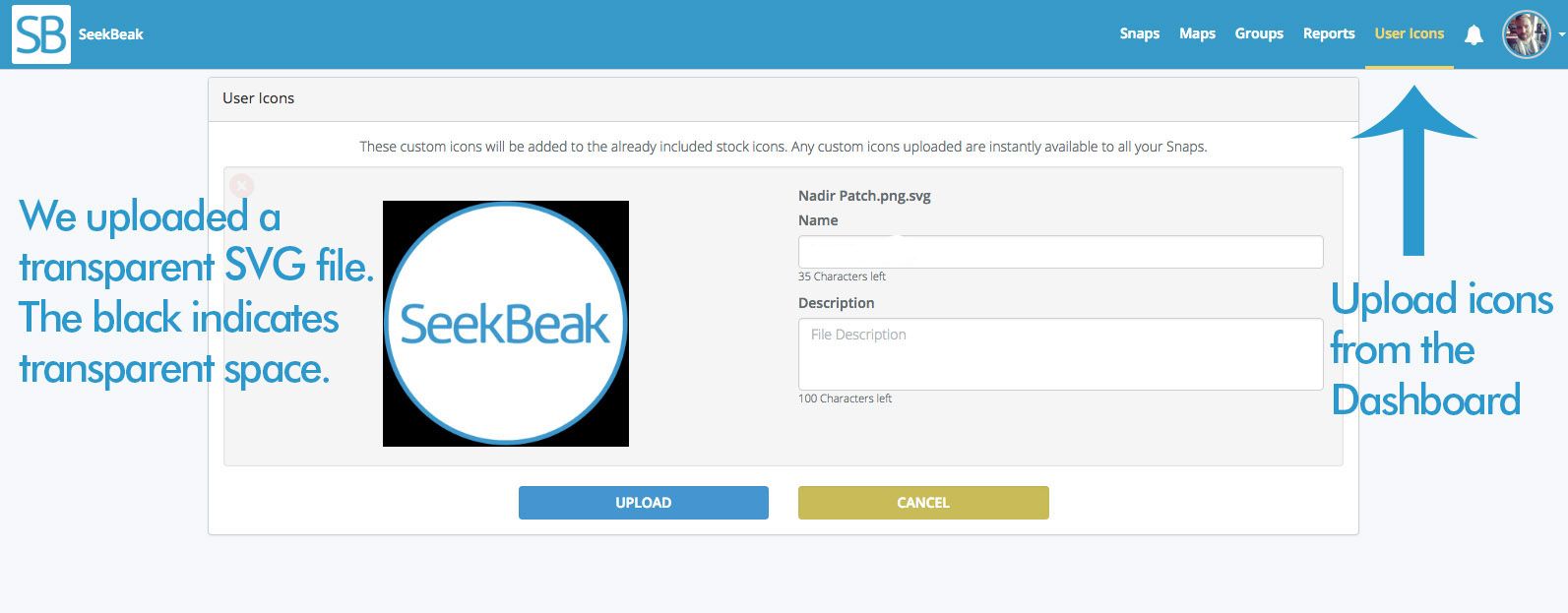
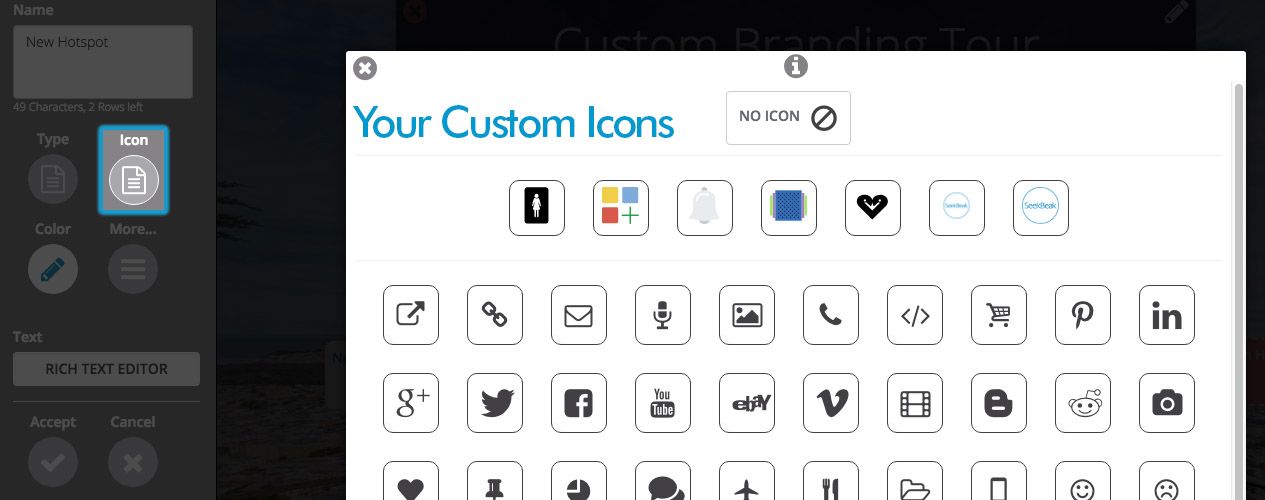
If you're interested in more custom design and branding options, read our full guide here. Custom Hotspot Icons A great way to make your mark on your 360 photos is by uploading your own icons for use with your Hotspots. SeekBeak allows you to replace any icon with one that you've uploaded or created. You upload the icons via the “User Icon” section of the Dashboard.
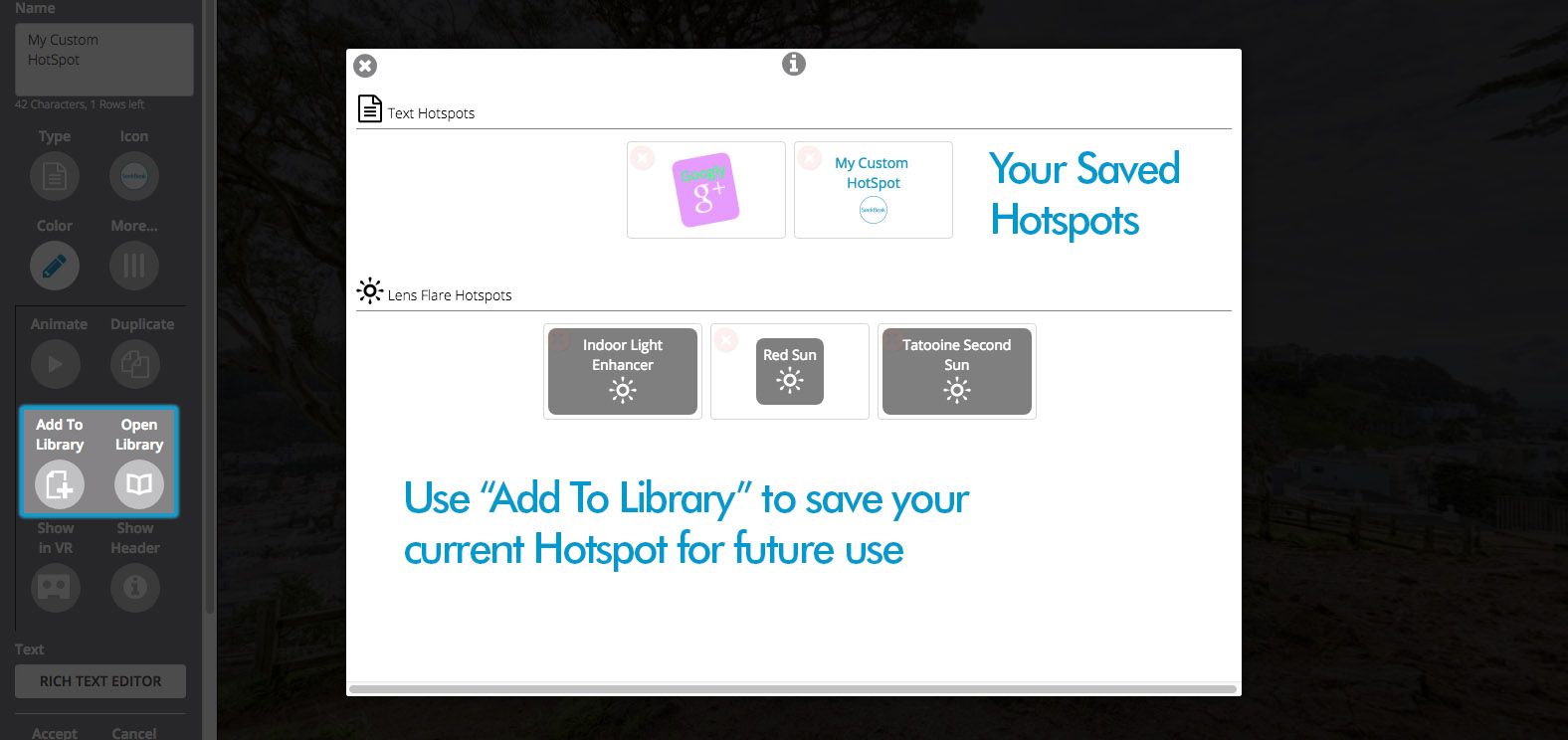
Save Regularly Used Hotspots in the HotSpot Library Occasionally, there might be Hotspots you use over and over again. We created the Hotspot Library so you can save specific Hotspots for reuse. In order to access your Library, create a Hotspot, open the “More” option in the Hotspot Menu, and then click “Open Library.” From here you can see any Hotspots that you've saved in the past. To save a Hotspot, just open the Hotspot editor and click “Add To Library.”