How to Animate a Hotspot in Your 360 Image
March 12, 2018 • By Tim A.
Last updated: March 11, 2025How-To
How to Animate a Hotspot
SeekBeak natively supports animated SVG and APNG files. Upload your own animated icons and they will just magically animate!
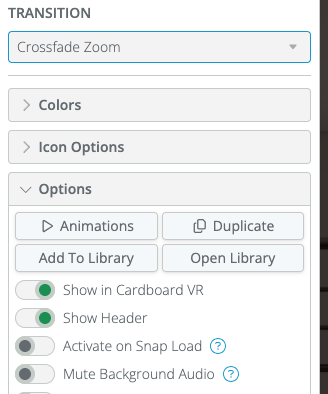
If you don't have an animated icon, don't fret. A great way to draw some attention to your Hotspots is by adding a built in animation to the Hotspot. You can do this by clicking the Animate button in the "Options" section of a Hotspot's property menu.
Animations Button in the Options Panel
Hotspot Animation Properties
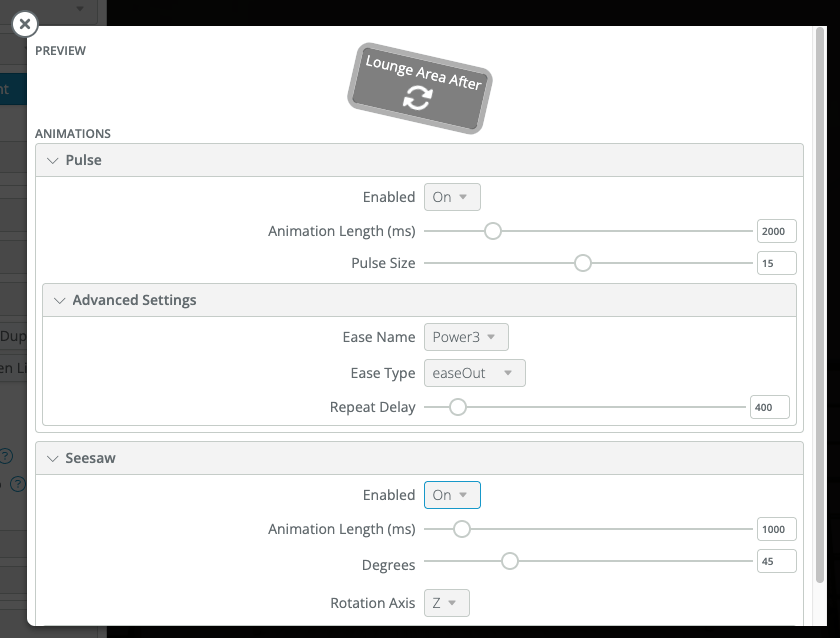
From here you get two animation options: Seesaw and Pulse. Seesaw swings the icon back and forth as you see with this Hotspot. Pulse gives a gentle visual outline that borders the Hotspot.
Need an Example?
We've put in a couple of subtle "SeeSaw" and "Pulse" animations in This Demo