How To Embed Rich Media in a 360 Photo (Embed Hotspots)
May 18, 2018 • By Tim A.
Last updated: June 24, 2026How-To
Blog Post
With the Embed Hotspot, you can embed a wide selection of content from other sites. Examples include but are not limited to:
- Videos from Youtube and Vimeo
- Google Maps
- Forms from Survey Monkey or Googles forms
- MailChimp Sign-up forms
- Slideshare, Prezi, presentations
- LinkedIn Profiles, Facebook Content, Instagram Content
- And much more
If the external service allows embed codes, you can implement them in your Snaps. Let's take a look at how you can embed a video in your 360 photo:
Step 1: Find a Video
We've selected a video from Youtube that we'd like to add to our Snap.
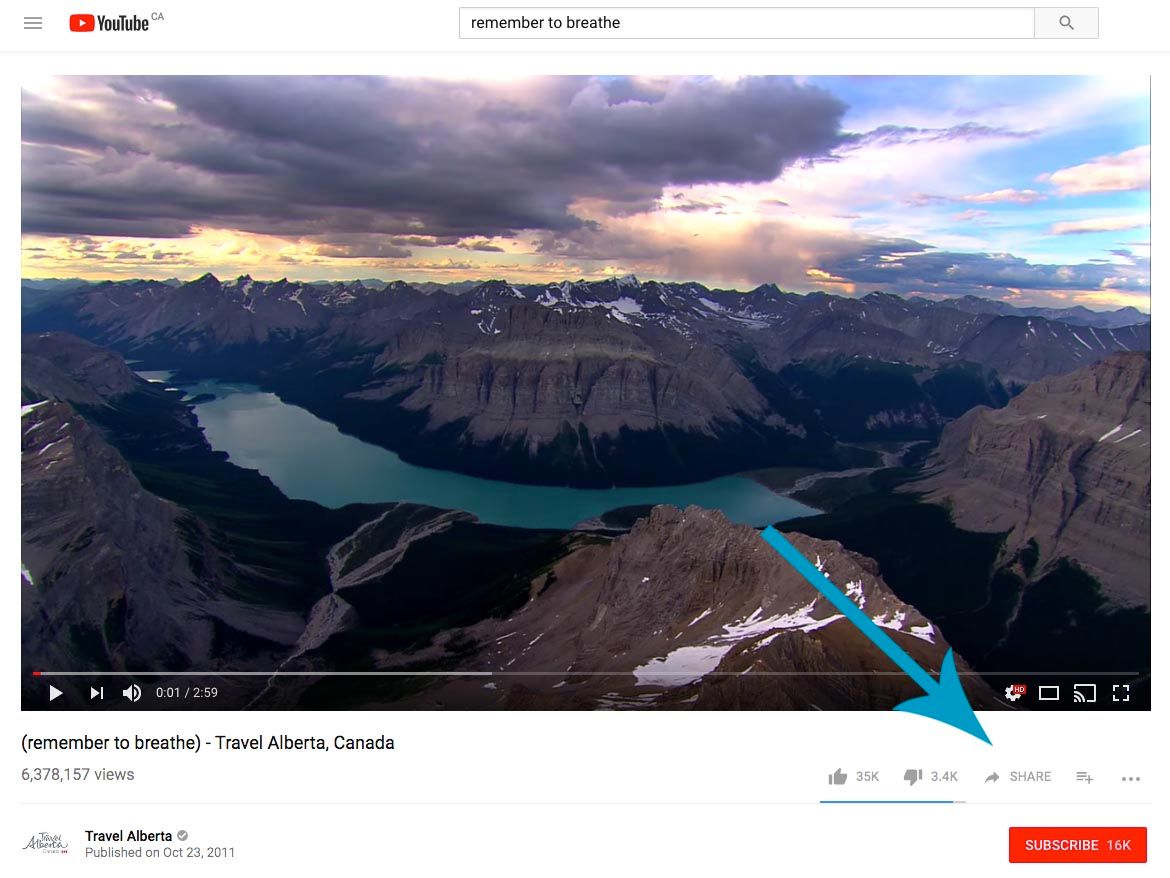
Step 2: Click Share to Open the Embed Options
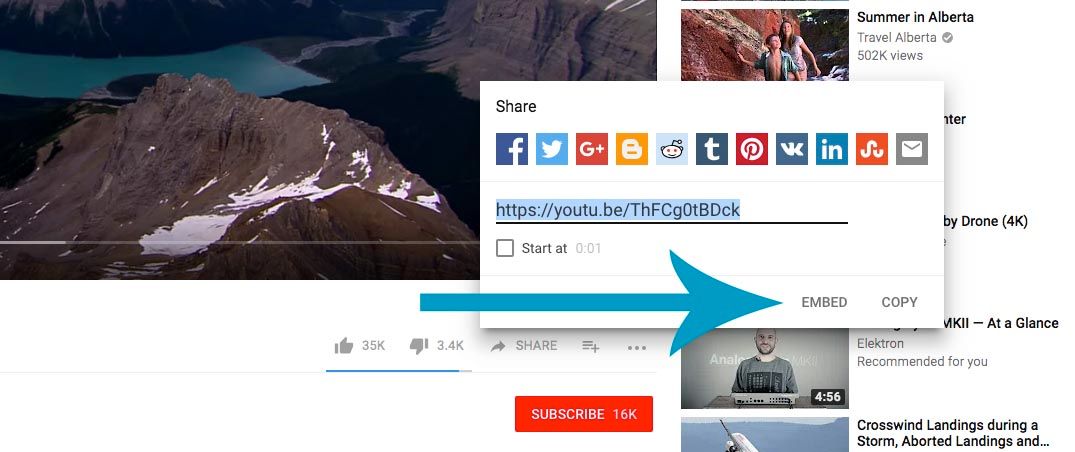
Step 3: Copy the Embed Code from Youtube
Embed codes usually come in the form of "iFrames." Essentially they are little chunks of code that contain the content you want to share.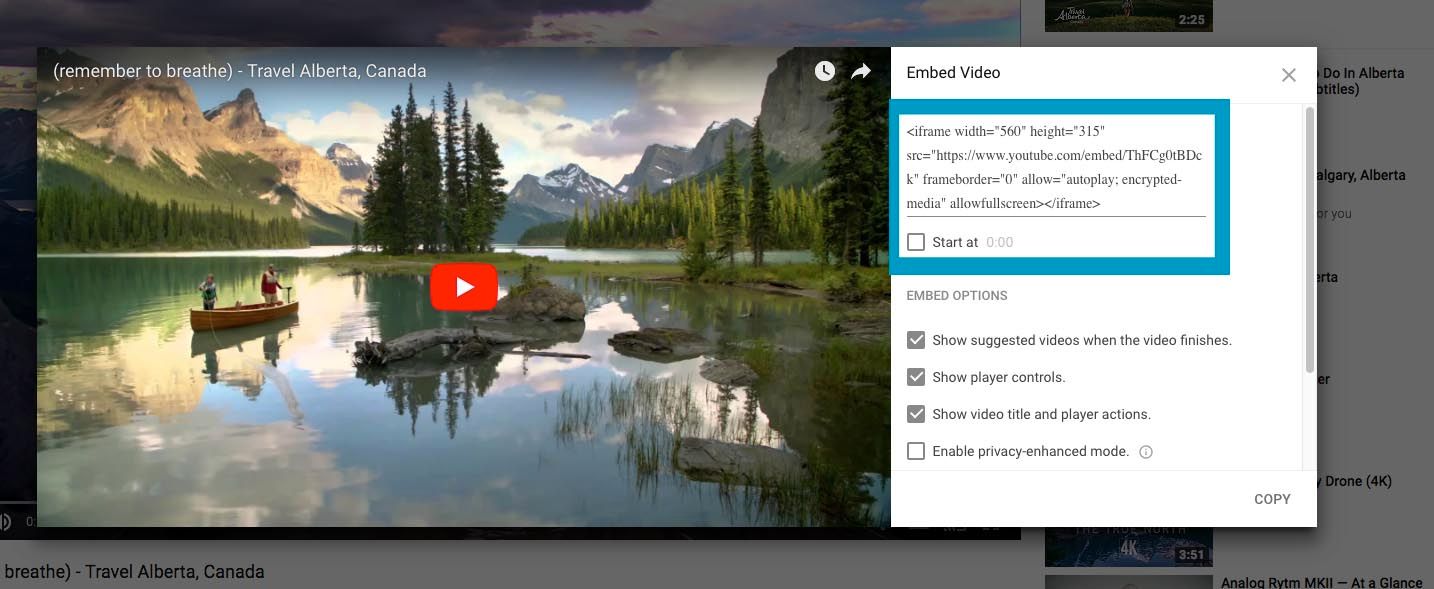
Step 4: Paste the Embed Code Into Your SeekBeak Embed Hotspot
From here, open your Snap, create a hotspot, and choose the "Embed" Hotspot type which looks like this: