How to Group Your 360 Photos Together
December 18, 2017 • By Tim A.
Last updated: June 11, 2026How-To
Blog Post

While you don't need to organize your Snaps by group, it's a handy feature for keeping track of groups of photos, or photos from a single location that you're making a tour out of! Remember, groups are mainly just for personal organization, you're able to link any Snap from any group for a tour.
- Use the Navigation Menu to select Groups.
- Click the "+" button to add a new Group.
- Once you've created the Group, simply click the name of it to go "inside" it if you want to upload content directly to it.
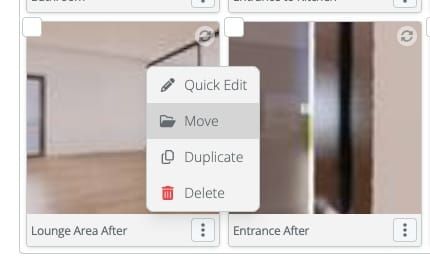
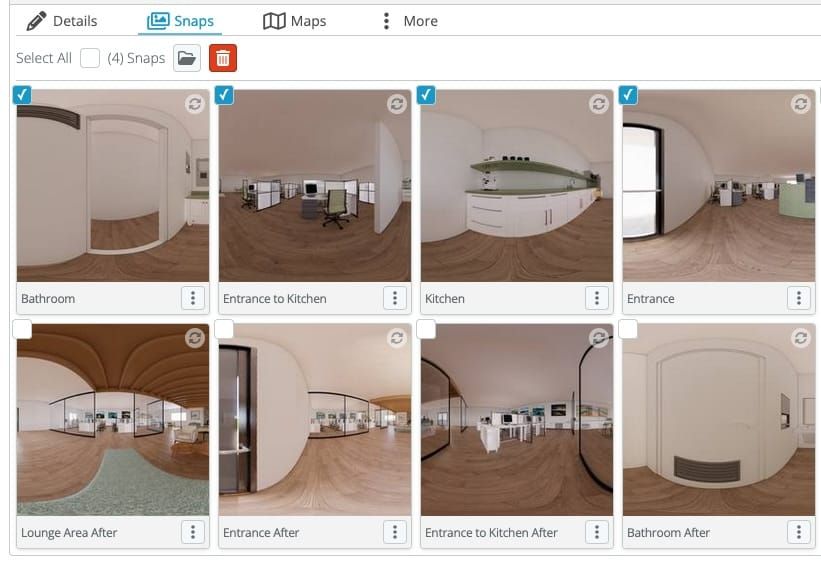
- There are multiple ways to move Snaps from one Group to another. Each Snap in the Group has its own individual menu button, or you can also select a few Snaps, then click the "Folder" button next to the Group selection tab. This will give you the option to move each Snap into your Group.
Bulk Moving Snaps Between Groups
Moving Individual Snaps to a Different Group