How to Publish Virtual Tours on Google Street View
How to Publish a 360° Virtual Tour to Google Street View
You've spent all this time making a great 360° experience in SeekBeak, so why not get more eyeballs on it and put it up on Google Street View as well!?
SeekBeak is a no-code, browser-based virtual tour platform that also publishes straight to Google Street View, so you can build and upload an immersive tour without stitching together a separate camera app and publishing service. To publish a virtual tour to Google Street View with SeekBeak, you can simply use the built-in Google Street View Wizard in the Groups area.
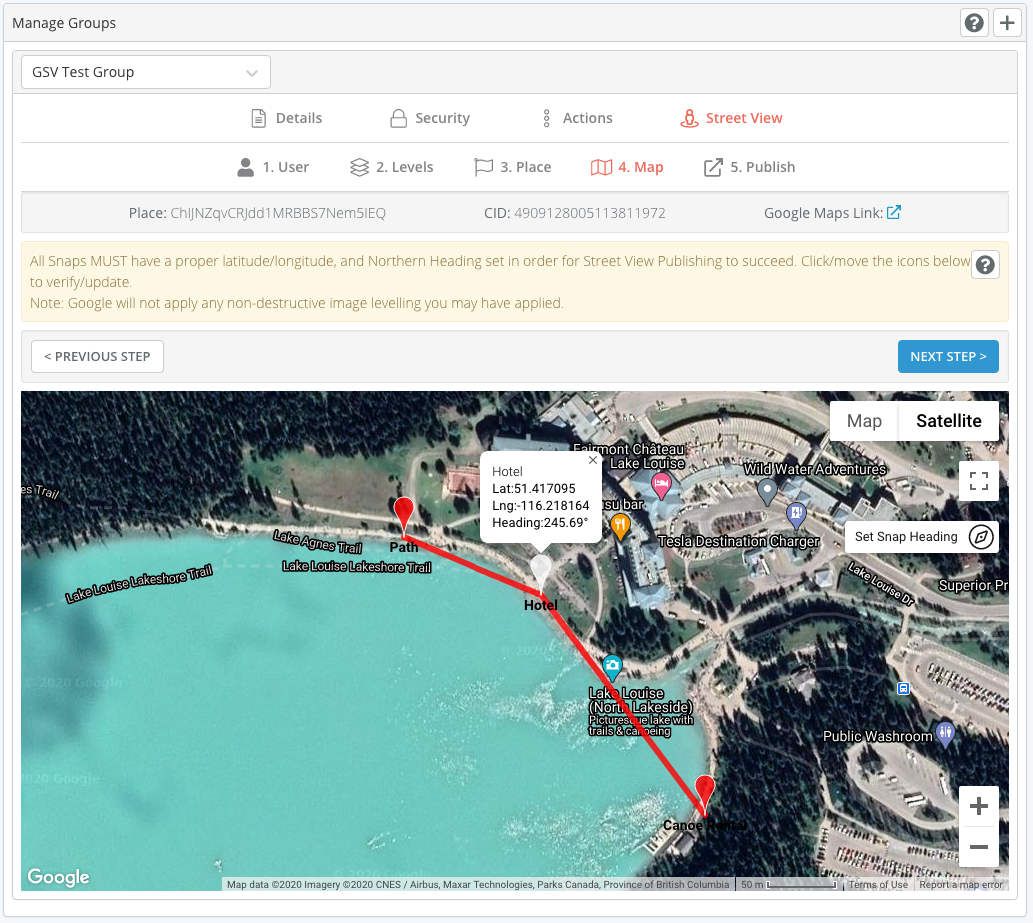
SeekBeak automatically reads each Snap's latitude, longitude, and northern heading from your image's GPS and EXIF data, so most tours are positioned for you. Need to adjust? Just associate your tour or experience with a Place and drag the map pins to fine-tune the location and heading by hand.
Check out our "Publishing a Virtual Tour To Google Street View using SeekBeak" video:
Why Put Your Virtual Tour on Google Street View?
Google Street View is one of the most visited surfaces on the web, so publishing your tour there puts your space in front of people who are already searching Google Maps for businesses like yours. A Google Street View virtual tour can:
- Help your listing stand out in Google Search and Google Maps with an immersive, interactive preview.
- Build trust before someone visits, which matters for real estate, hospitality, retail, and event venues.
- Drive those same visitors back to your website, where the identical tour can live as an embedded experience.
Google Street View only supports basic image-to-image navigation, so think of it as the front door: it helps people discover your space, then leads them to your full SeekBeak tour with all of its interactivity. Rather than treating the two as separate projects, SeekBeak lets you build the tour once and publish it to both.
SeekBeak to Street View
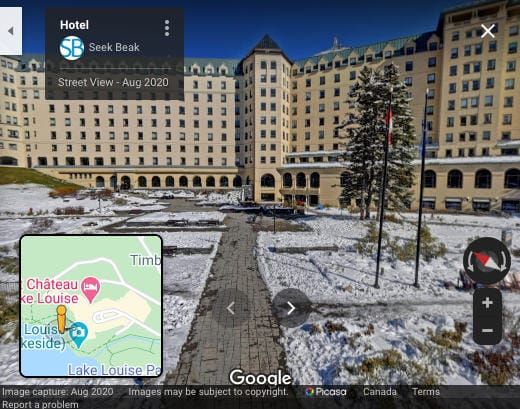
Here's a shot after the upload from SeekBeak to Google. Snap titles, connections, headings, and latitude /longitude coordinates are all migrated over.
Multi-Level Tours for Multi-Floor Buildings
Doing a multi-level tour? We've got you covered too! SeekBeak's Google Street View integration supports multi-level tours, so a building with several floors stays organized on Google Maps. Create the levels, move the Snaps into the appropriate level, and that's it, no separate stitching software required.
For navigating between floors inside your SeekBeak experience itself, you can also add 2D maps and floor plans with clickable hotspots.
Google Street View Multi Level Support
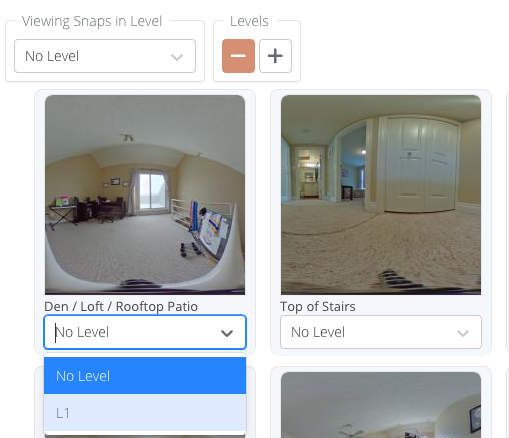
Add and name your levels, which will show up when viewing in Google Street View.
Publish to a Client's Google Account Without Sharing Logins
Your client wants their content uploaded to their own Google Street View account but doesn't want to hand over their Google login credentials. No sweat.
SeekBeak lets anyone on a Team securely link their account with Google and optionally share that connection with the rest of the Team. That means agencies and photographers can publish 360° tours to a client's Google Street View account without ever seeing a password, and other Team Members can reuse any shared Google account to publish content securely.
To see how simple it is to set up, check out our "Setting up SeekBeak to upload your Virtual Tours to Google Street View" video.
Maintain Multiple Client Google Accounts in SeekBeak
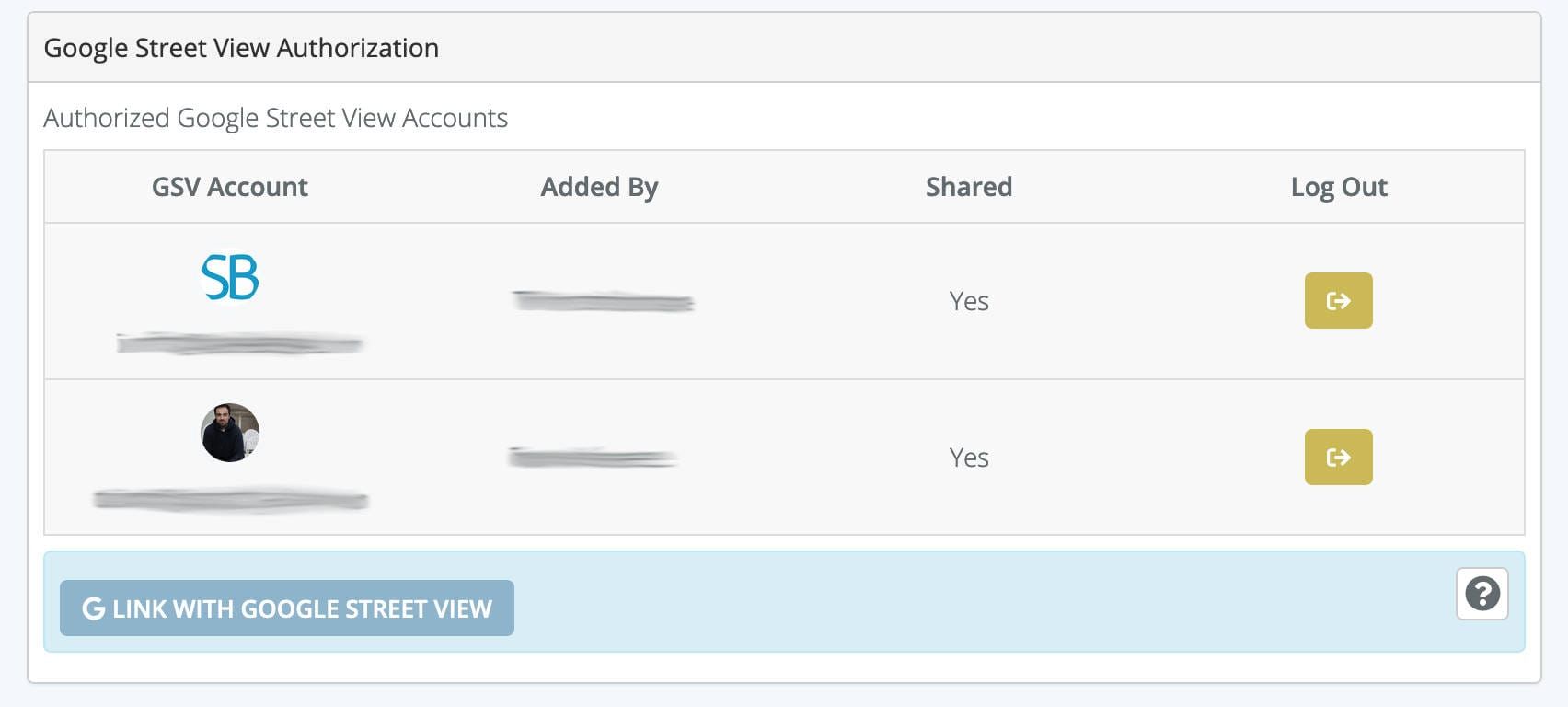
Simply invite your client as a Team Member, then they can securely link up their account with Google without any credential information ever being exposed to anyone else, including us at SeekBeak! Maintain multiple Google accounts in your Team, and publish content to any of them at any time.
If you need to do updates or tweaks to your published Google Street View tour, you can still use the trusty Google Street View app by following the instructions here.
Key Takeaways
- One platform, two destinations: Build an interactive 360° tour in SeekBeak, publish it to Google Street View, and embed the same tour on your own website, with no separate capture or stitching tools.
- Bulk publishing: The Google Street View Wizard uploads an entire Group of Snaps at once, with map pins for latitude, longitude, and northern heading.
- Multi-floor ready: Multi-level support keeps tours of multi-story buildings organized on Google Maps.
- Agency-friendly: Securely publish to a client's Google account without sharing login credentials.
- In business since 2014, SeekBeak is a no-code virtual tour software used by creators and enterprises worldwide.
Frequently Asked Questions
Can you put a virtual tour on Google Street View?
Yes. With SeekBeak you can publish an entire 360° virtual tour to Google Street View directly from your browser. Build your tour, open the Google Street View Wizard in the Groups area, associate it with a Place, and upload the whole Group of Snaps at once, with no separate stitching or capture app required.
Why would I want both a Google Street View tour and a SeekBeak tour?
They do different jobs. Google Street View is a discovery surface that gets your space found on Google Maps, but the experience is limited to panning and image-to-image navigation. A SeekBeak tour is the full interactive experience, with clickable hotspots, embedded video and forms, lead capture, e-commerce, analytics and heatmaps, live guided tours, and your own branding. The Street View version helps people find you; your SeekBeak tour turns those visitors into leads, bookings, or sales. Publishing both means you capture Google's traffic and deliver a richer experience everywhere else.
How do you make a Google virtual tour for a business?
Upload your 360° photos into SeekBeak, link them into a tour with hotspots, then publish the Group to Google Street View so it appears on Google Maps and your Google Business Profile. Because the same tour also embeds on your own website, you reach customers on Google and on your site from a single build.
Do I need a 360 camera to publish to Google Street View?
You need 360° images from a compatible camera, such as a Ricoh Theta or Insta360, but you do not need any desktop stitching software. SeekBeak reads the GPS coordinates and heading from your photos' EXIF data automatically and handles the upload to Google for you.
Can I publish to a client's Google Street View account?
Yes. A team member can securely link a client's Google account and optionally share that connection with the team, so agencies and photographers can publish to a client's Street View account without ever handling their password.