How To Use Google Analytics to Track 360 Photo Traffic

Google Analytics 4 is a popular way for websites to track and understand their traffic. Supporting SeekBeak plans allow you to integrate into GA4 using a Google Tag ID, allowing you to track your 360 photo traffic like you would any other page on your website.
When people visit your Snap, SeekBeak sends a Page View event to Google using your supplied Google Tag ID(s).
To set this up, we need to find your Google Tag ID. A Google tag ID is a series of letters and numbers that usually starts with "G-".
Data Streams

To find your Google tag ID , do the following once you are logged into your Google Account:
In Admin, under Property Settings, click Data streams
Finding the Measurement ID
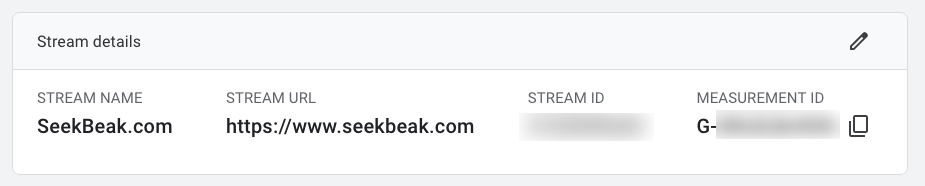
Click the name of your data stream, and copy the Measurement ID (starts with "G-" or "AW-").
Snap Properties > Preferences > Analytics
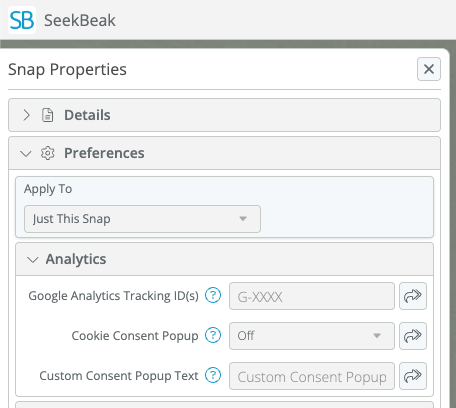
When you're editing your Snap, open up the Properties and head over to Preferences. In the Analytics tab, paste in the code into the "Google Analytics Tracking ID(s)" area.
Note that SeekBeak also allows you to use multiple tracking IDs if you need to!
Once you add the code, each Snap view will fire off a view notification to your very own Google Analytics.
This allows for seamless integration into any existing Google Analytics campaigns, 3rd party reporting systems, custom dashboards, etc.
That's it!